Instagram notifications not working? Here's how to fix them
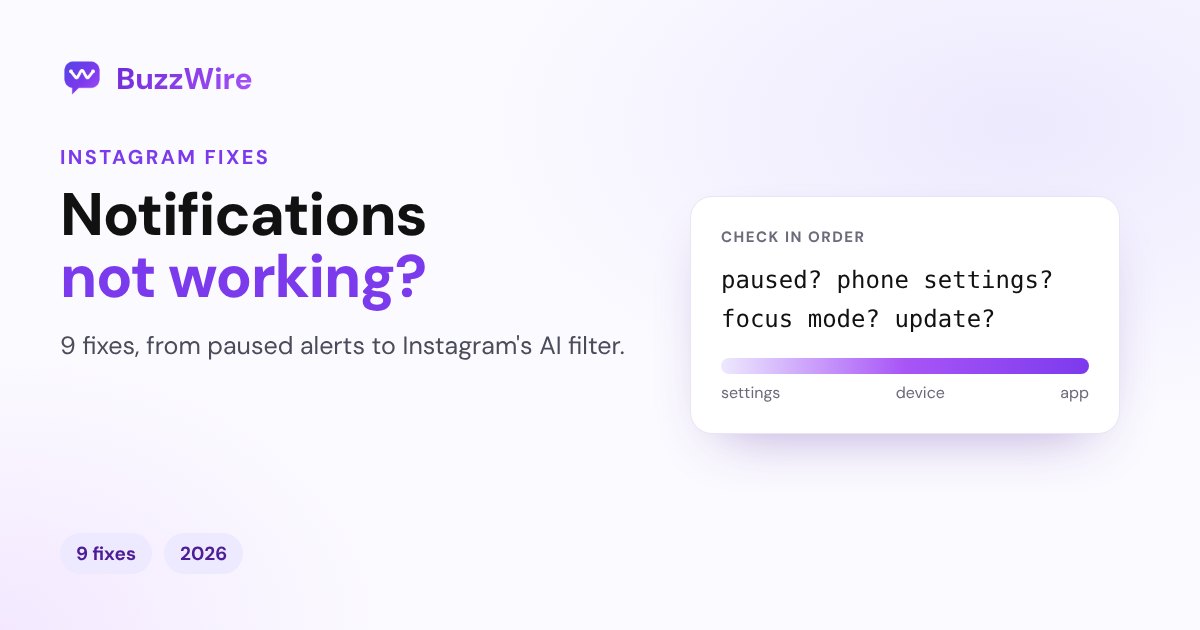
Instagram notifications not working? Check paused notifications, phone settings, Focus modes and Instagram's AI filter, then try 9 fixes in order.
On this page
- Why are my Instagram notifications not working?
- 1. Turn off "Pause push notifications"
- 2. Allow Instagram notifications in your phone's settings
- 3. Check Focus, Do Not Disturb and battery saver
- 4. Turn on notifications for each type you want
- 5. Understand Instagram's AI notification filter
- 6. Update the Instagram app
- 7. Restart your phone and test your connection
- 8. Log out and back in
- 9. Reinstall Instagram, then report the problem
- A tip for creators and brands
- FAQ
- Why am I not getting Instagram notifications?
- Why don't I get notified for every like on Instagram?
- How do I turn Instagram notifications back on?
- Why are my Instagram DM notifications not working?
- Does reinstalling Instagram delete my account?
In short:
- Start with the two most common causes: notifications are paused in Instagram's settings, or turned off for Instagram in your phone's settings.
- Then check Focus, Do Not Disturb and battery saver modes, which can hold notifications back.
- Not every like or post creates a notification. Meta says an AI system decides which suggested and activity notifications you get, and when.
- If nothing works, update the app, restart your phone, test Wi-Fi and mobile data, then reinstall. That's Instagram's own troubleshooting order.
- Messages, comments, follow requests and security alerts aren't filtered by that AI system, so if those stop arriving, it's a settings or device problem.
Sources: Instagram's Help Center on managing push notifications, muting and pausing them, when Instagram sends them and troubleshooting, and Meta's Instagram Notifications system card (updated 1 Jul 2026). Checked 13 Nov 2026.
Why are my Instagram notifications not working?
Usually one of four things:
| Cause | How to tell | Fix |
|---|---|---|
| Notifications paused in Instagram | "Pause push notifications" is on | Turn it off (fix 1) |
| Turned off in your phone's settings | No Instagram notifications at all | Allow them (fix 2) |
| Focus, Do Not Disturb or battery saver | Notifications arrive late or in a batch | Allow Instagram through (fix 3) |
| Instagram's AI chose not to send it | Some likes or posts don't notify, messages do | Adjust the notification settings (fix 5) |
1. Turn off "Pause push notifications"
Instagram lets you pause all push notifications for a set time, and it's easy to forget you did. Instagram's steps:
- Tap Profile or your profile picture in the bottom right.
- Tap Menu in the top right.
- Below How you use Instagram, tap Notifications.
- Make sure Pause push notifications is off.
2. Allow Instagram notifications in your phone's settings
Your phone has its own switch for every app.
- iPhone: Settings → Notifications → Instagram → turn on Allow Notifications.
- Android: Settings → Apps → Instagram → Notifications → turn them on.
3. Check Focus, Do Not Disturb and battery saver
Focus modes on iPhone, Do Not Disturb, and battery or data saver modes on Android can silence or delay notifications. Add Instagram as an allowed app, or turn the mode off and test.
4. Turn on notifications for each type you want
In Notifications, each type has its own setting: posts, stories and comments; follows and followers; messages; live and reels. Turn on the ones you're missing. To get notified when a specific account posts, open their profile, tap Notifications, and choose Posts, Stories, Reels or Live videos.
5. Understand Instagram's AI notification filter
Meta says the content in your notifications "is selected, ranked and delivered to you by an artificial intelligence (AI) system." It scores possible notifications and sends the ones it predicts you'll care about, sometimes later, at a time it picks for "less time-sensitive" ones.
What that means in practice:
- You won't get a push for everything, especially suggested posts and some activity.
- Messages, comments, connection requests and security alerts aren't powered by that AI system, per Meta. If those stop, look at settings and your device.
- You can see in-app notifications newest first by turning off "See most relevant in-app notifications first" in notification settings.
6. Update the Instagram app
Instagram's troubleshooting page says to make sure you're running the latest version of the app and of your phone's operating system before anything else.
7. Restart your phone and test your connection
Restart first. Then try Instagram on Wi-Fi and on mobile data, to rule out a weak connection.
8. Log out and back in
Logging out and in refreshes your session on that device. If you use several accounts, check notifications are on for the one you're missing.
9. Reinstall Instagram, then report the problem
If nothing else works, delete and reinstall the app; Instagram says your photos and profile info are saved. Still broken? Instagram's troubleshooting page says it may be a bug, and you can report a technical problem from inside the app. If the app also shows an error, see Instagram "Something went wrong".
A tip for creators and brands
Missed notifications mean missed comments and DMs, and the people asking for a link don't wait. BuzzWire's comment-to-DM automation and Instagram auto reply answer keyword comments and messages automatically, free on the official API, so nothing depends on you seeing a notification in time. If DMs themselves aren't arriving, see Instagram DMs not working and Instagram message requests.
FAQ
Why am I not getting Instagram notifications?
Most often, notifications are paused in Instagram's settings or turned off for Instagram in your phone's settings. Focus or Do Not Disturb modes can also hold them back. Check those first, then update the app.
Why don't I get notified for every like on Instagram?
Meta says an AI system decides which notifications you get and in what order, based on what you're likely to engage with. It also handles suggested content. Messages, comments and security alerts aren't part of that system.
How do I turn Instagram notifications back on?
Go to your profile, tap Menu, then Notifications under How you use Instagram. Turn off Pause push notifications and turn on each type you want. Also allow Instagram in your phone's notification settings.
Why are my Instagram DM notifications not working?
Check that message notifications are on in Instagram's Notifications settings and that the chat isn't muted. Messages from people you don't follow may arrive as message requests, which notify differently.
Does reinstalling Instagram delete my account?
No. Instagram says your photos and profile info are saved when you remove the app. Log back in with your username and password after reinstalling.
Never miss a "link?" comment again. Start free on BuzzWire and reply to every keyword comment automatically.